
WORKFLOW
Rappers Video | Higgsfield Genjutsu
From character sheets to video: replace the characters while keeping the reference video’s audio and movements.
Prepare your character sheets
Create a character sheet for each character you want to include in the video. For this workflow, I used ChatGPT’s Astra-High model on the Pro plan.
If that model is not available in your account, try the most capable model available in your ChatGPT account, or use one of the following:
- Nano Banana Pro 2
- Nano Banana 2
- Seedreams 5 Pro
In my experience so far, these three models produce some of the best results for character sheets.
Create a character sheet in ChatGPT
Upload your character reference images. Here are examples of the reference images I found through Google:
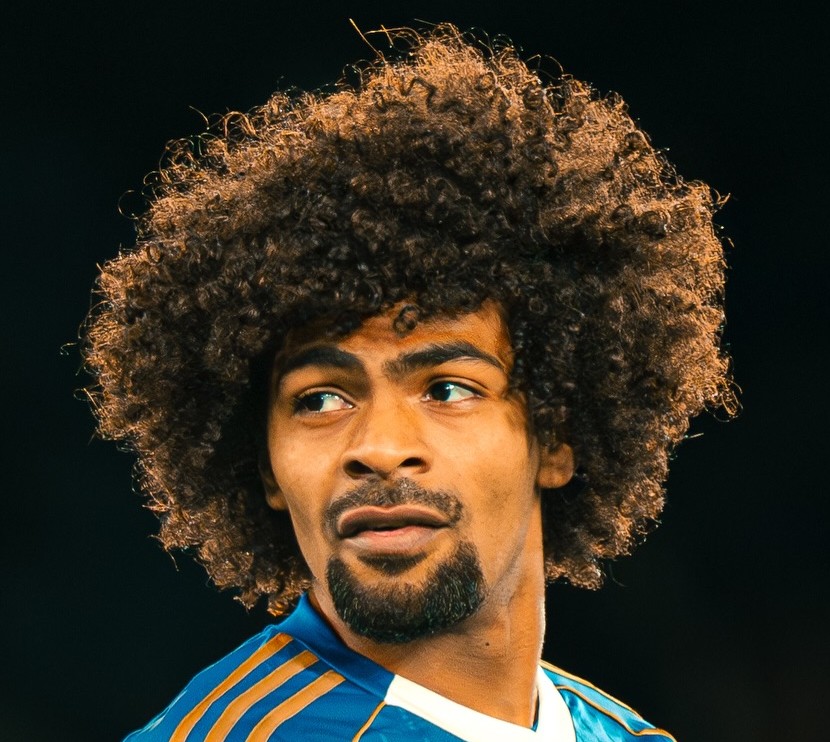
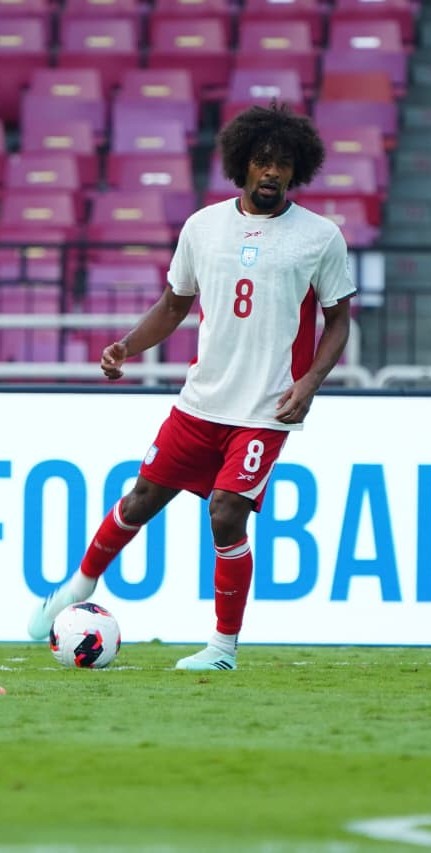
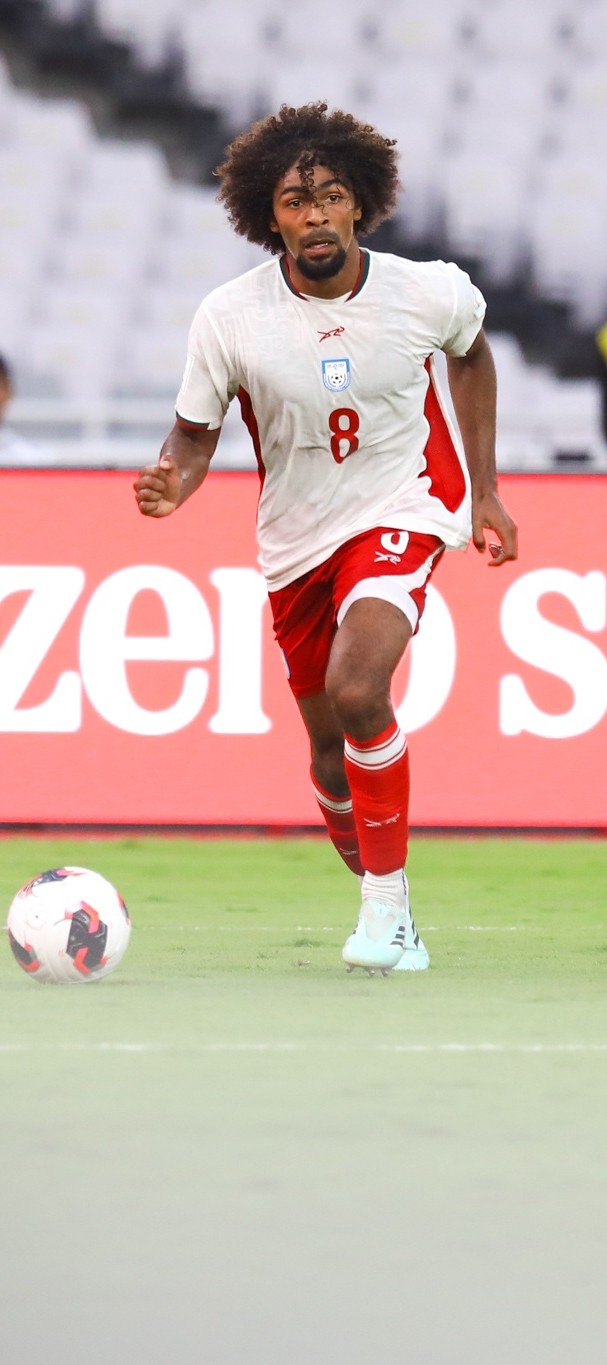
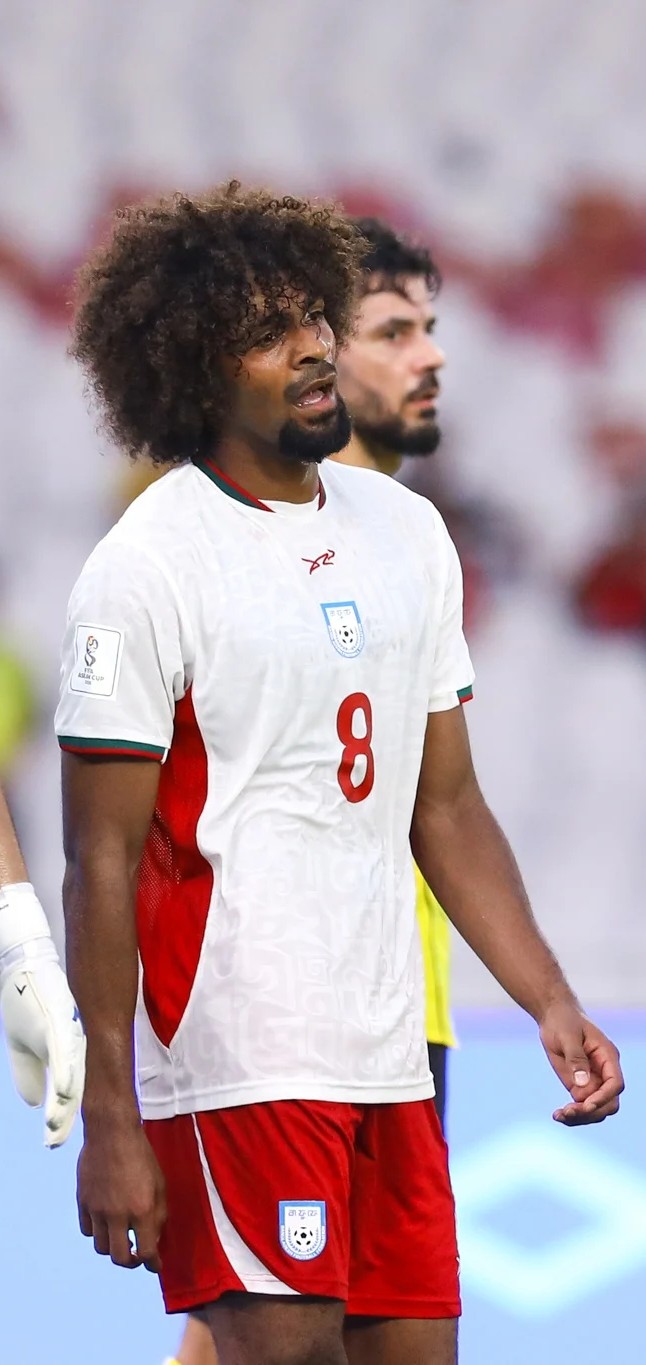
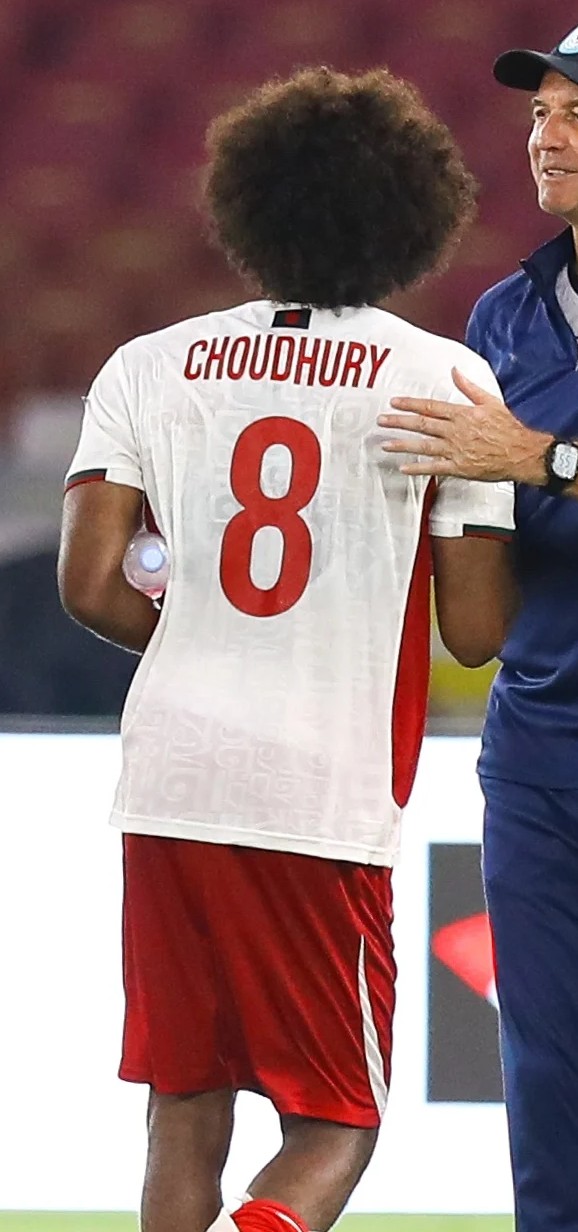
Select an image to view it at full size.
Then enter the following prompt:
Character sheet prompt
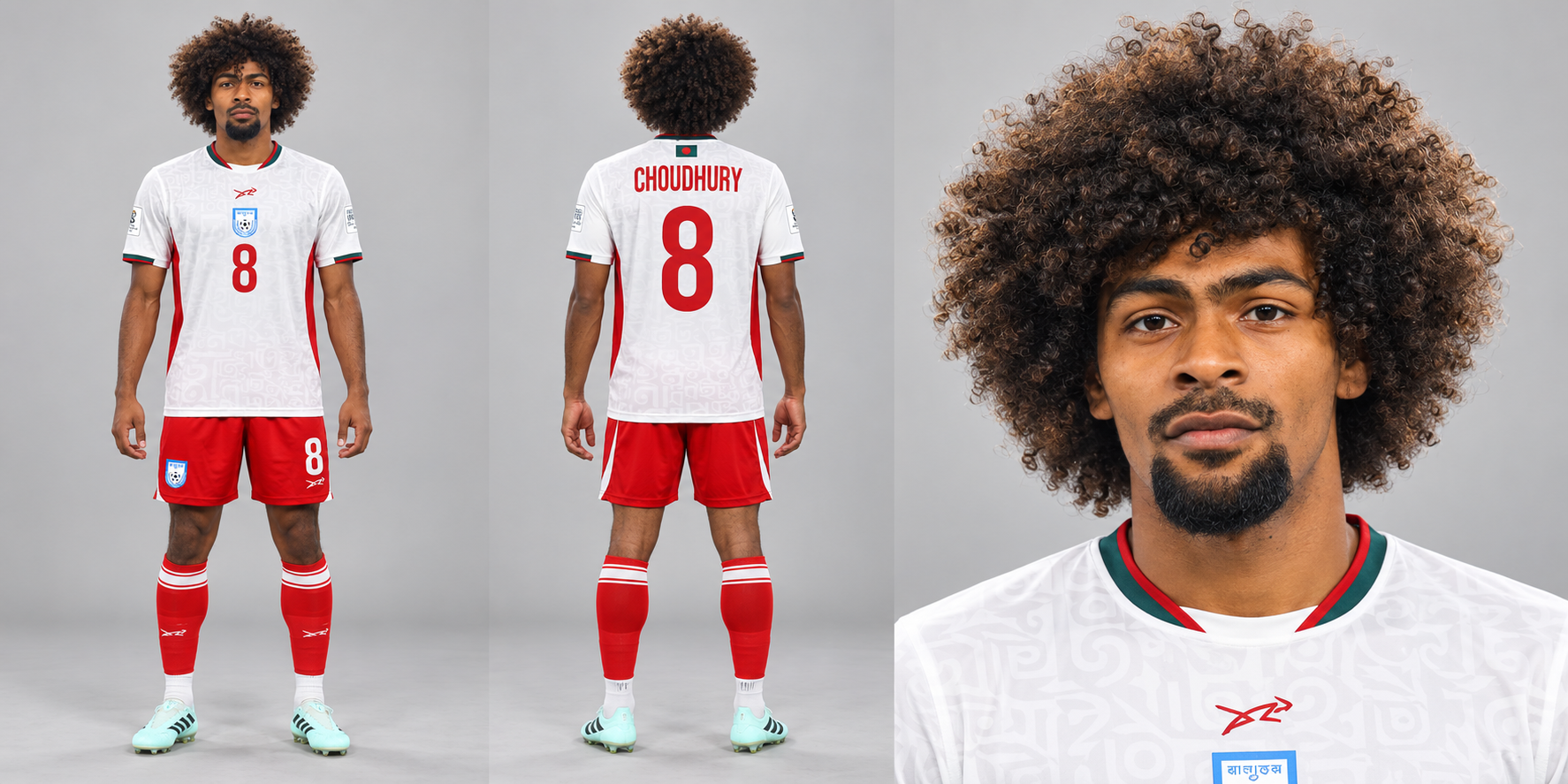
Based on the reference images I have provided, create a character sheet

- full-body front view
- full-body back view
- close-up portrait
- light grey background
Refine the facial reference
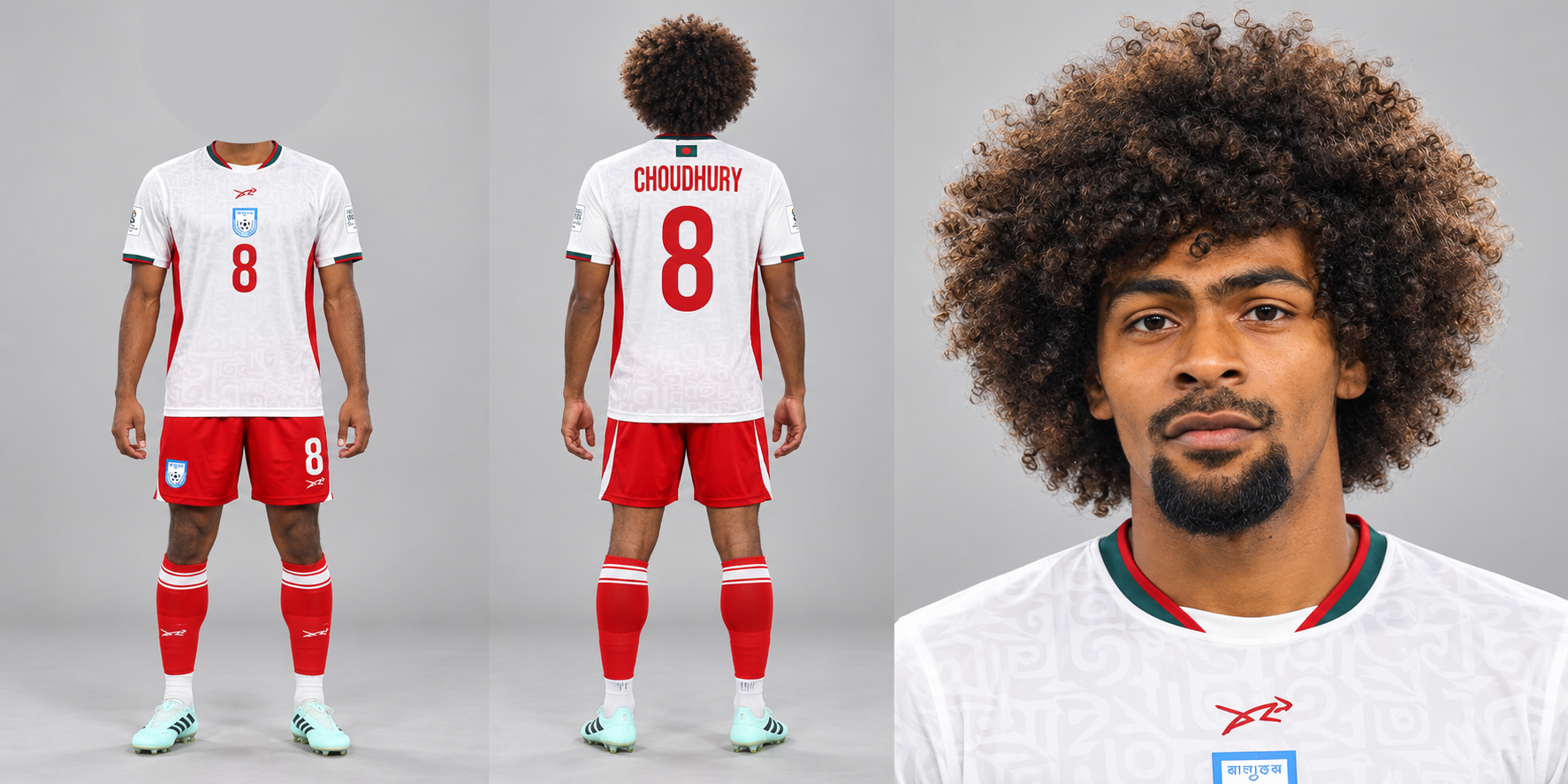
Once I have the character sheet, I edit it to remove the face from the full-body front view. I want the AI to use only the close-up portrait as its facial reference.
This helps reduce competing facial references and keeps the generated character more consistent with the character sheet.
Open Higgsfield and check your credits
Open Higgsfield using this link:
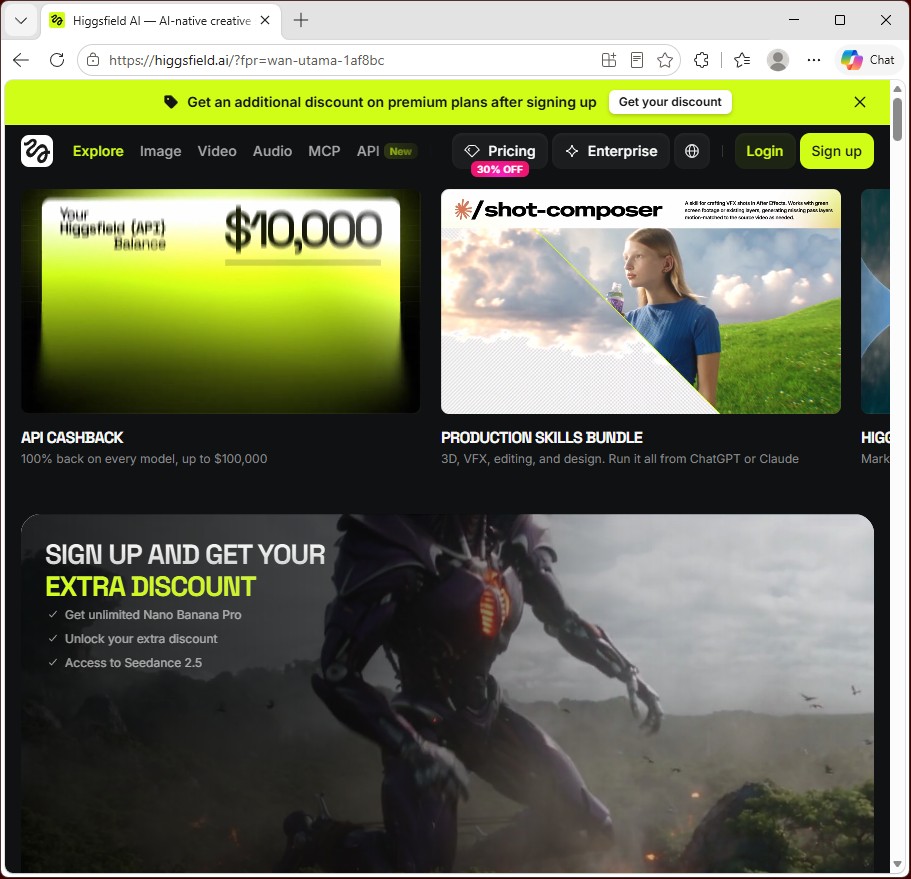
Log in if you already have a Higgsfield account, or select Sign up to create one.
In this example, the displayed cost is 275 credits for one generation at 1080p. Make sure you have enough credits. You can top up your credits or, if you are new to Higgsfield, subscribe to a plan that suits your needs.
Check the displayed credit cost before selecting Generate, as it may vary with your settings and current offers.
Open the Genjutsu tab
In Higgsfield, open the Genjutsu tab. We will use this feature to create the video.
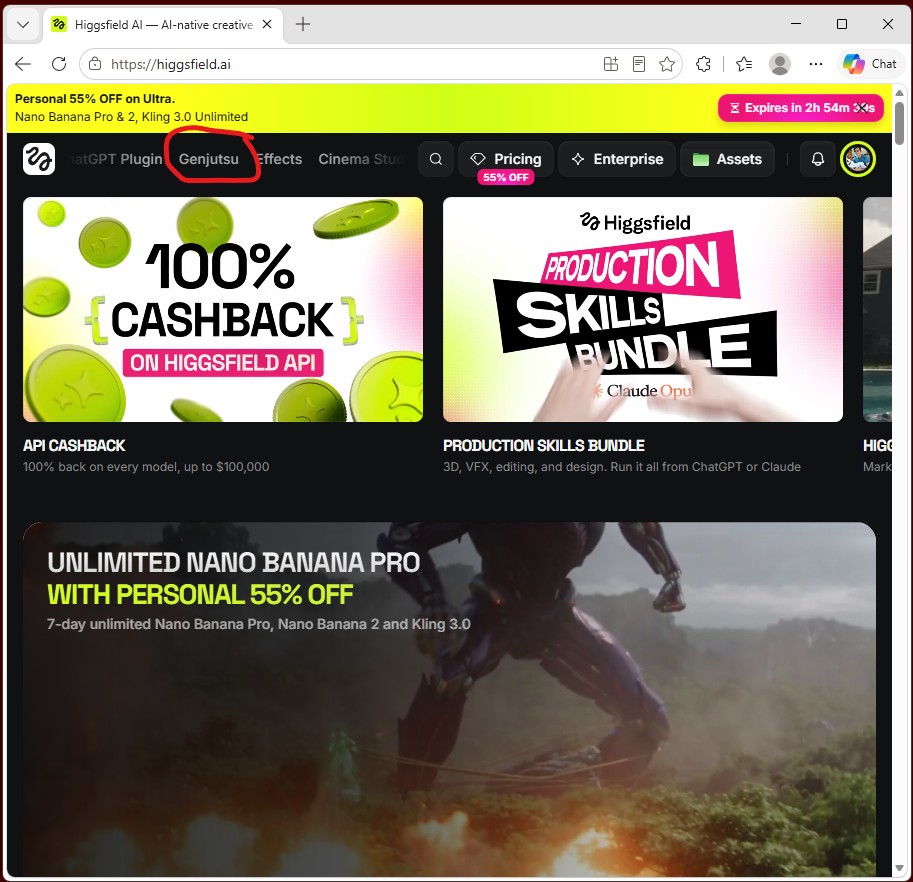
Open my reference project
Open my project using the link below. You should see the project page shown in the reference image.
Open the Rappers Video project
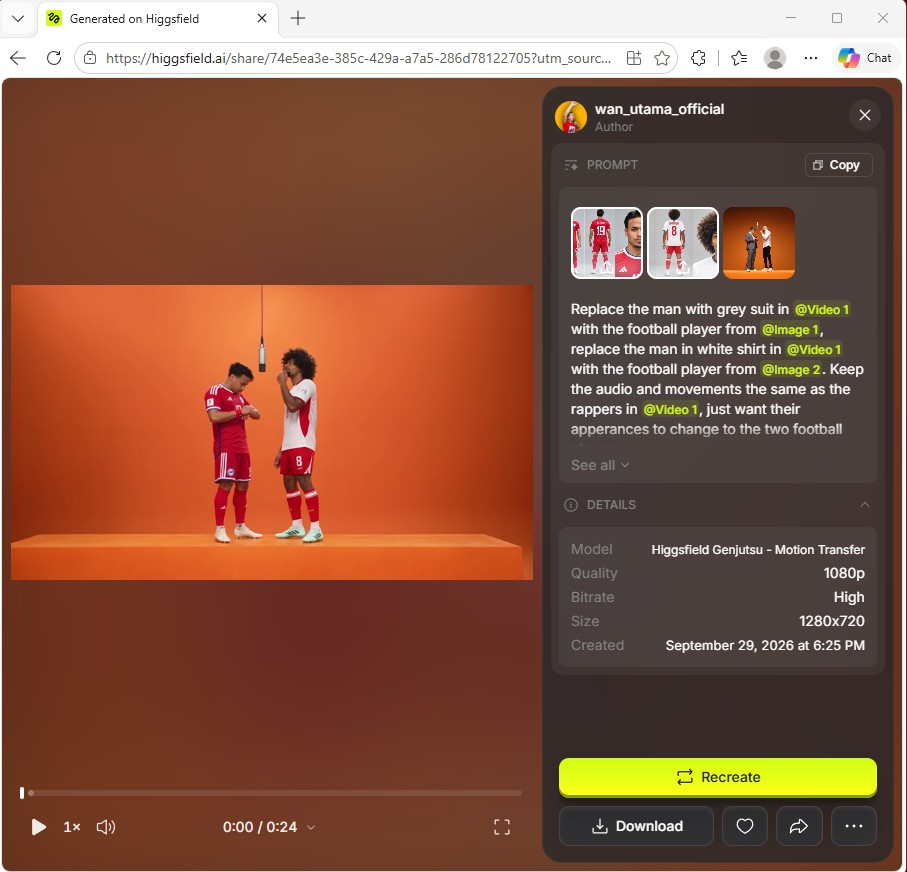
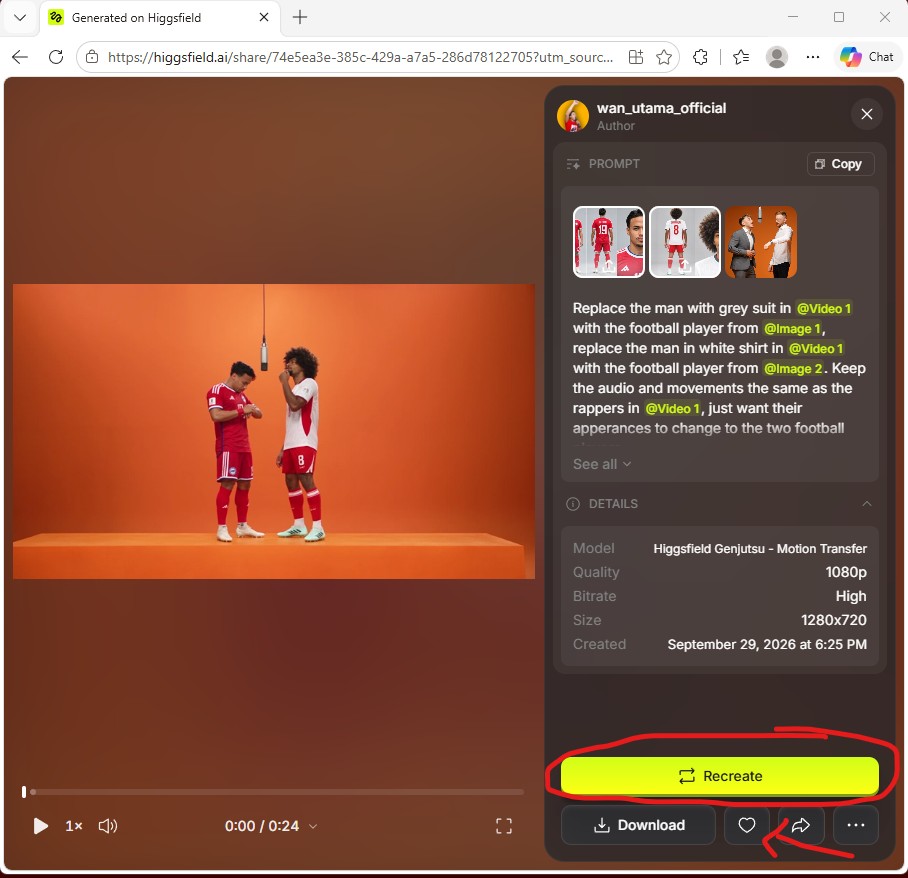
Select Recreate
Select Recreate. Feel free to leave a Like too. Hehe.
Check the workspace after selecting Recreate
After you select Recreate, the generation workspace opens as shown below. The project’s reference video, character images and prompt will be loaded into the workspace.
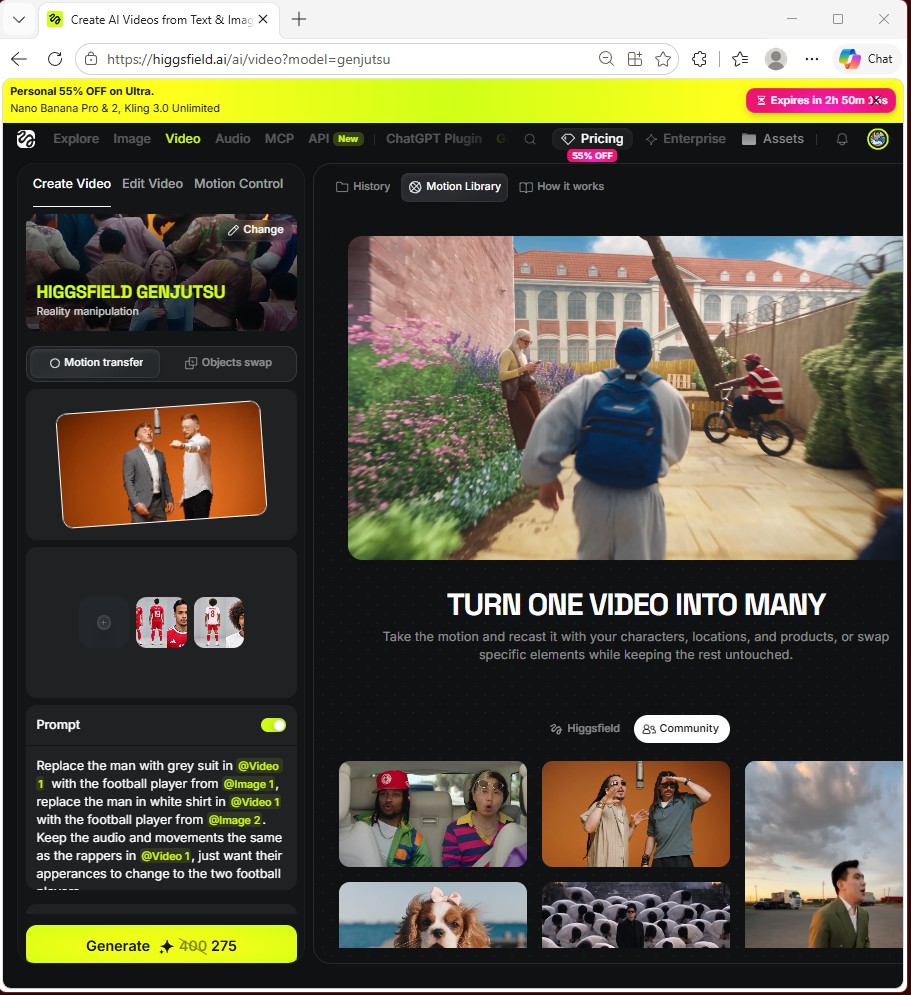
Select Motion Transfer
Select Motion Transfer and keep the existing reference video.
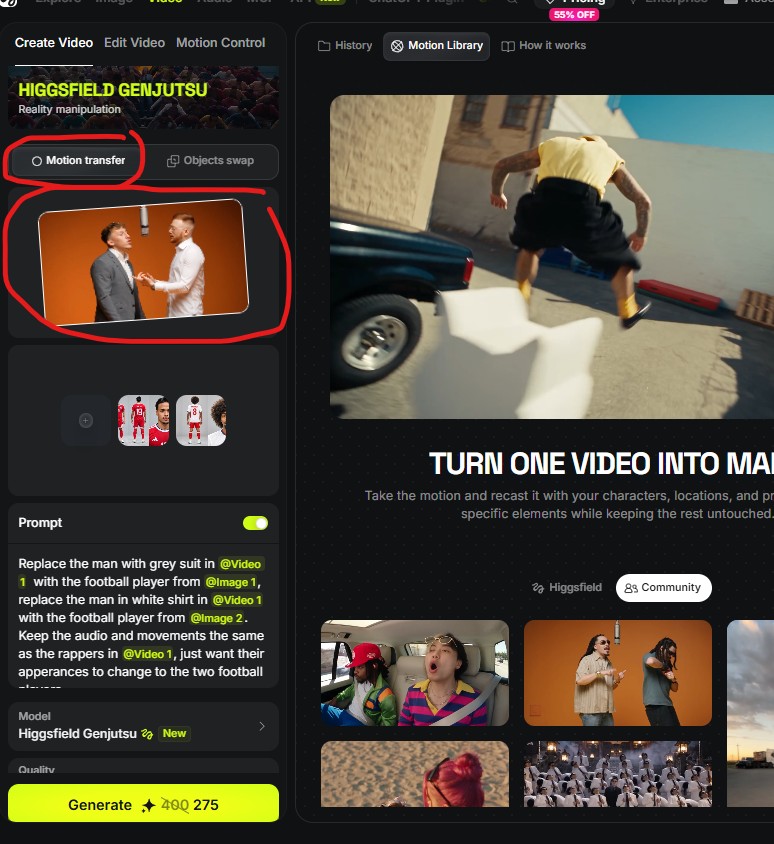
Replace the character reference images
In the reference image section, select the cross to remove the existing character images. Then upload the character sheets for the characters you want to use.
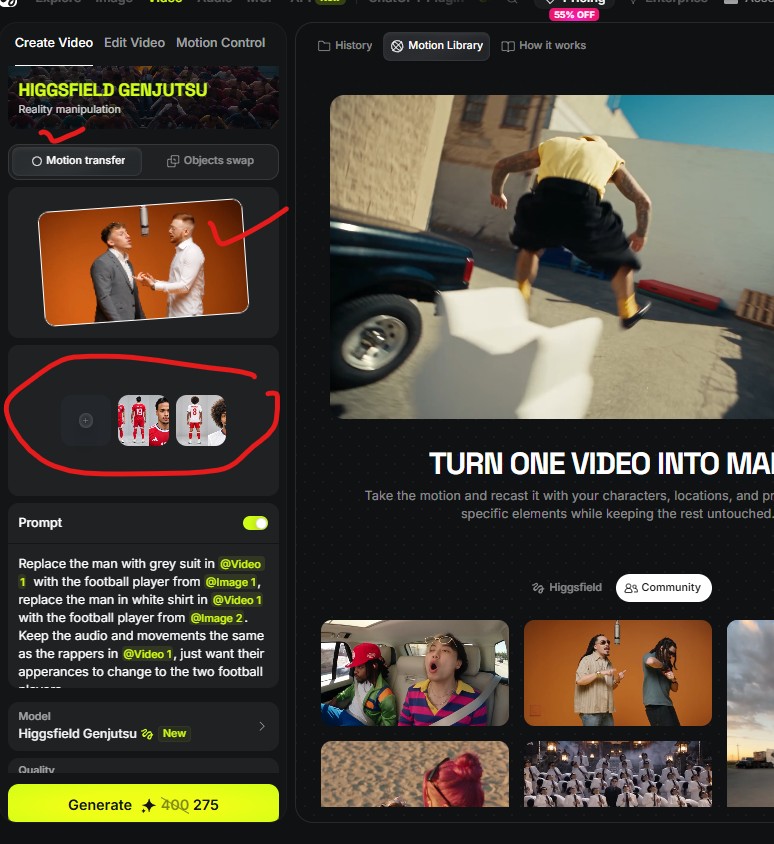
Adjust the prompt
Adjust the prompt to match the characters you want to use. Make sure @Image1 and @Image2 refer to the correct uploaded images.
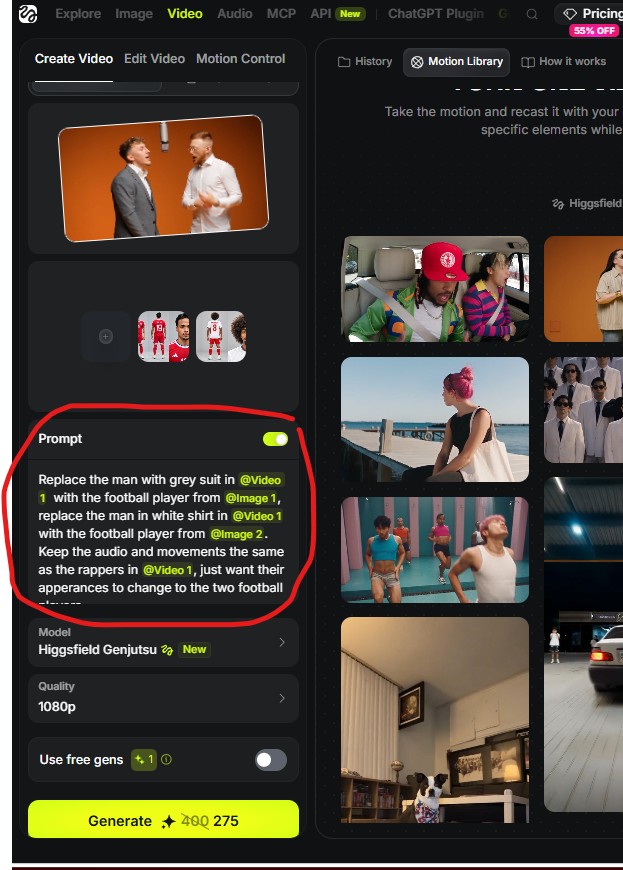
The prompt I used
Replace the man in the grey suit in @Video1 with the football player from @Image1. Replace the man in the white shirt in @Video1 with the football player from @Image2. Keep the audio and movements the same as the rappers in @Video1. Only change their appearances to those of the two football players.Adapt the character descriptions to suit your own project. In this example, the audio and movements stay the same; only the appearance of the two characters changes.
Check the model and quality
Keep the model set to Higgsfield Genjutsu and the quality set to 1080p, as shown.
If you want to use fewer credits, you can select 720p. I do not recommend 420p.
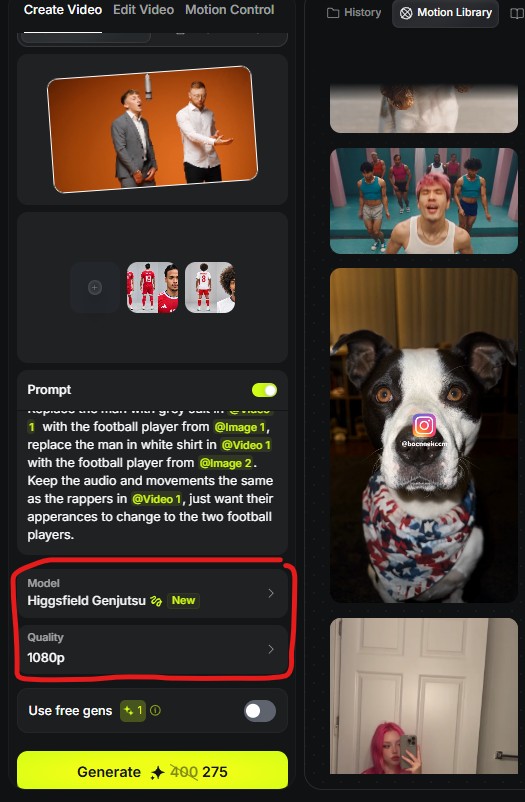
Generate your video
Select Generate and wait for your video to finish.
Thank you.